
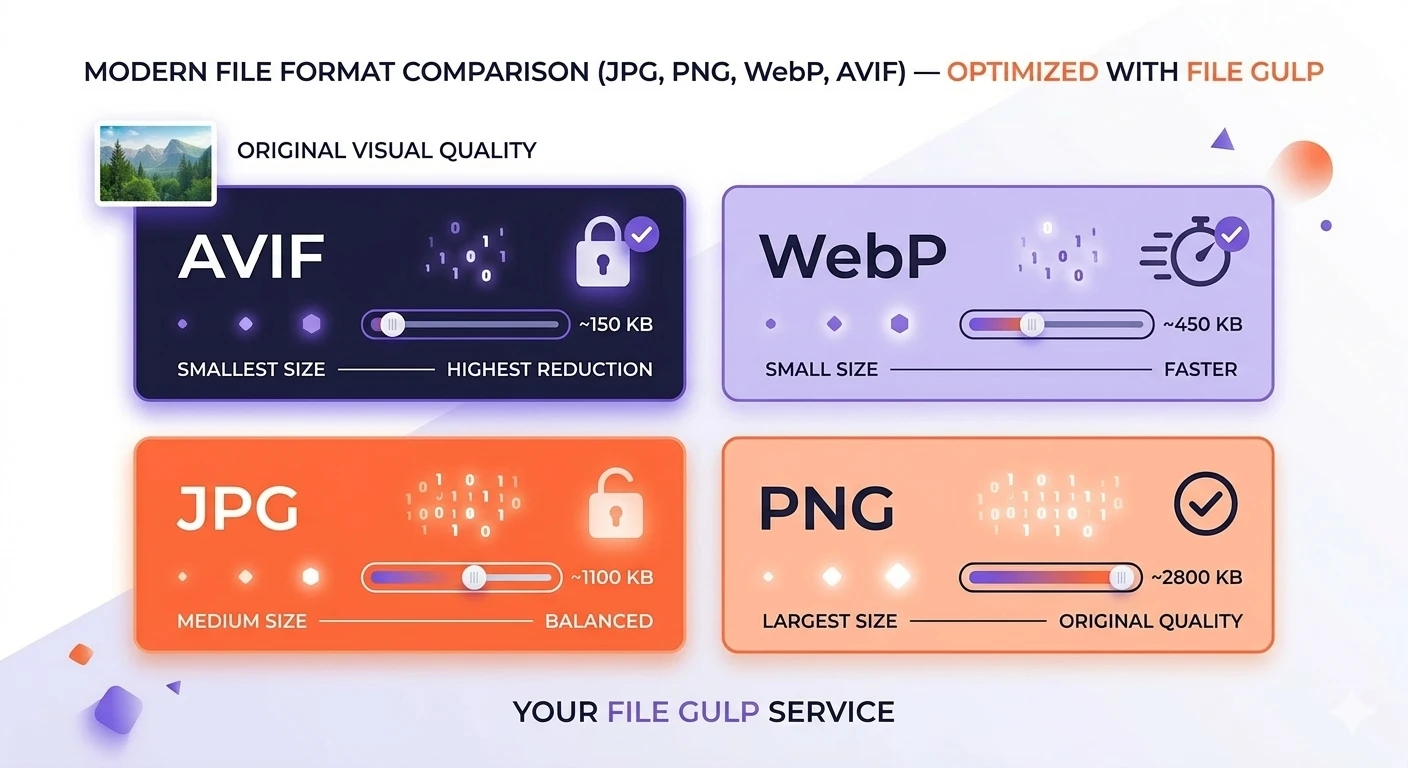
Let’s be honest for a second. We’ve all been there—you’ve got this perfect image for your website, you hit “Export,” and boom. You’re staring at a dropdown menu that might as well be written in ancient Sanskrit. JPG? PNG? What the heck is a WebP, and why does AVIF sound like a sci-fi movie?
Here’s what usually happens: you panic-click JPG because it feels safe, or you go with PNG because “lossless sounds expensive, so it must be good.” Then you wonder why your hero image takes forever to load, or why your crystal-clear logo looks like it went through a blender.
I mean, choosing the right image format isn’t just some nerdy web developer thing. It’s one of those small decisions that makes a massive difference. Get it right, and your pages load like lightning. Get it wrong, and you’re basically asking your visitors to grab a coffee while they wait.
So let’s break this down. No jargon, no overwhelm—just the stuff you actually need to know.
The Quick Truth About Image Formats
Think of image formats like different types of containers. Some are built for preserving every tiny detail (hello, PNG). Others are designed to squeeze photos into the smallest possible space without making them look terrible (that’s JPG’s job). Then you have the newer kids on the block—WebP and AVIF—that are basically trying to do everything better than their older siblings.
Here’s the thing though: each format has a sweet spot. Photos love compression because they have so many colors and gradients that a little data loss goes unnoticed. But logos? They hate compression. Every pixel matters when you’re dealing with clean lines and text.
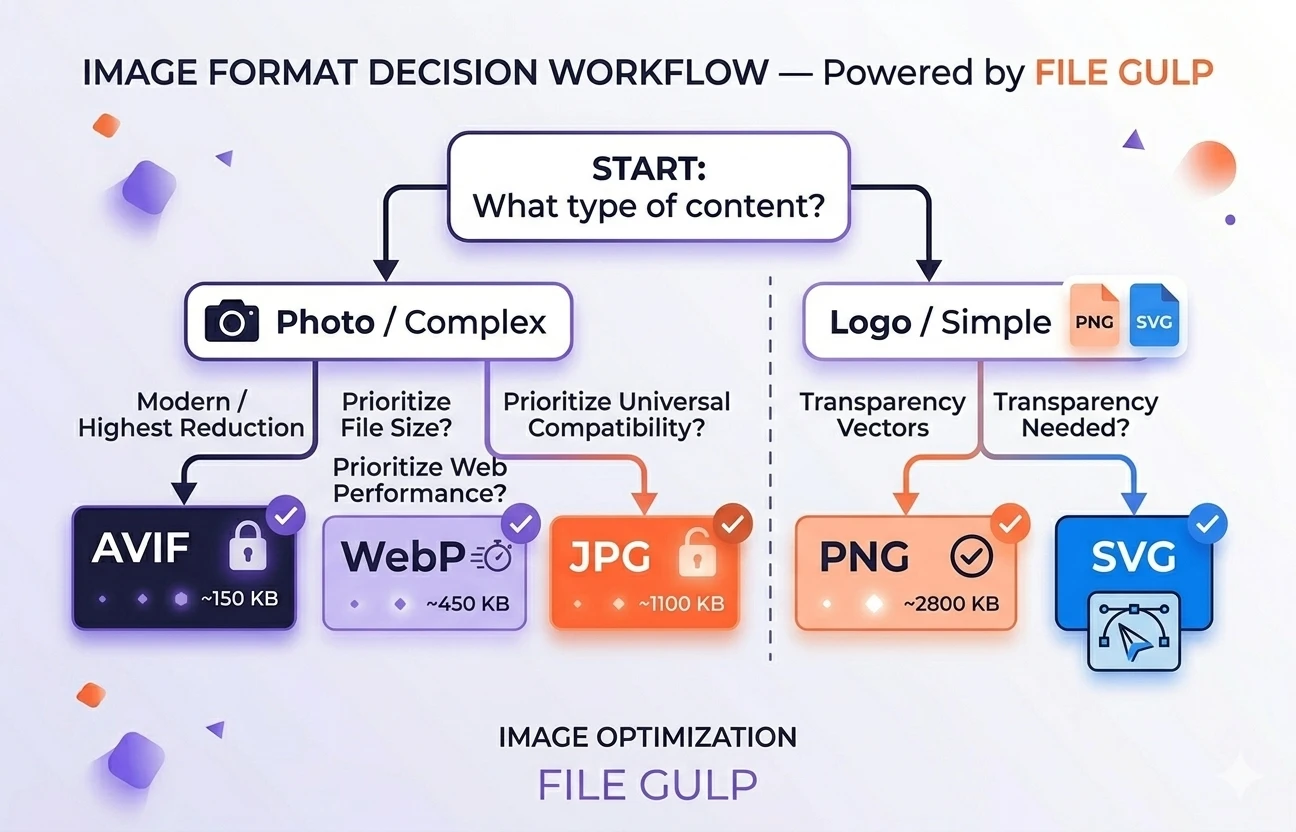
The difference between picking the right format versus the wrong one can literally cut your image file sizes in half while making them look better. That’s not hyperbole—that’s just how much better modern formats have gotten.
Meet Your Options (The Good, The Better, and The “Why Didn’t I Know About This?”)
JPG: The Reliable Workhorse
JPG has been carrying the internet on its back since the ’90s. It uses lossy compression, which sounds scary but really just means it throws away invisible details to keep file sizes reasonable.
Perfect for: Real-world photos, anything with tons of colors, gradients, or complex textures. Your vacation pics, product photography, hero images—JPG handles these like a champ. It’s also the safest choice when you need maximum compatibility across all devices and software.
Avoid it when: You need a transparent background (JPG doesn’t do transparency) or you’re dealing with sharp edges like logos or text. Trust me on this one—I’ve seen too many blurry company logos that started life as crisp PNGs. Need transparency? Run it through our JPG to PNG converter first.
PNG: The Perfectionist
PNG is that friend who color-codes their bookshelf and irons their jeans. It keeps every single pixel exactly as you intended, and it supports transparency like a boss.
Perfect for: Logos, icons, screenshots with text, anything that needs to stay razor-sharp. If you can see clean lines or need a transparent background, PNG is your friend. It’s also excellent for images with limited colors—think charts, diagrams, or simple graphics.
Avoid it when: You’re dealing with large photos. I once watched someone upload a 10MB PNG of their wedding photo. The page was still loading when I finished my lunch. For photos with lots of colors and detail, PNG creates unnecessarily massive files. If you made that mistake, instantly shrink it with our PNG to JPG tool.
WebP: The Overachiever
Google created WebP to basically replace both JPG and PNG, and honestly? They kind of succeeded. It can do lossy compression like JPG, lossless like PNG, supports transparency, and generally creates files that are 25-35% smaller than the old formats.
Perfect for: Almost everything on your website. Photos, logos, graphics—WebP handles it all while keeping your page speed happy. Browser support is excellent these days, with over 98% of users able to view WebP images without issues.
Avoid it when: You’re sharing files with people using older desktop software, or uploading to systems that haven’t been updated in years. Some print shops and older email clients still get confused by WebP files. If a client can’t open a WebP, bounce it to JPG/PNG in seconds with our WebP to JPG or WebP to PNG converters.
AVIF: The Future Is Here
AVIF is what happens when video compression technology gets applied to still images. The results are honestly mind-blowing—files that are often 50% smaller than JPG with the same visual quality. It also supports advanced features like HDR and wide color gamuts that other formats can’t touch.
Perfect for: Heavy-duty images where every kilobyte counts. Hero images, photo galleries, anywhere bandwidth costs money. If you’re serving images to mobile users on slower connections, AVIF can be a game-changer.
Avoid it when: You need maximum compatibility or you’re uploading to systems that haven’t caught up yet. About 93% of browsers support AVIF now, but that 7% might include your boss’s ancient computer. Need a fallback? Convert instantly with our AVIF to JPG or AVIF to PNG tools.
The Comparison That Actually Matters
| Format | Best For | Transparency | Typical Size vs JPG | Browser Support | When to Use |
|---|---|---|---|---|---|
| JPG | Photos, complex images | ❌ No | Baseline (100%) | Universal | Maximum compatibility needed |
| PNG | Logos, UI, sharp graphics | ✅ Full alpha | 300-500% larger | Universal | Crisp edges, transparency required |
| WebP | Modern web content | ✅ Full alpha | 70-80% of JPG | 98% of users | Best all-around choice for web |
| AVIF | Bandwidth-critical photos | ✅ Full alpha | 40-60% of JPG | 93% of users | Maximum compression needed |
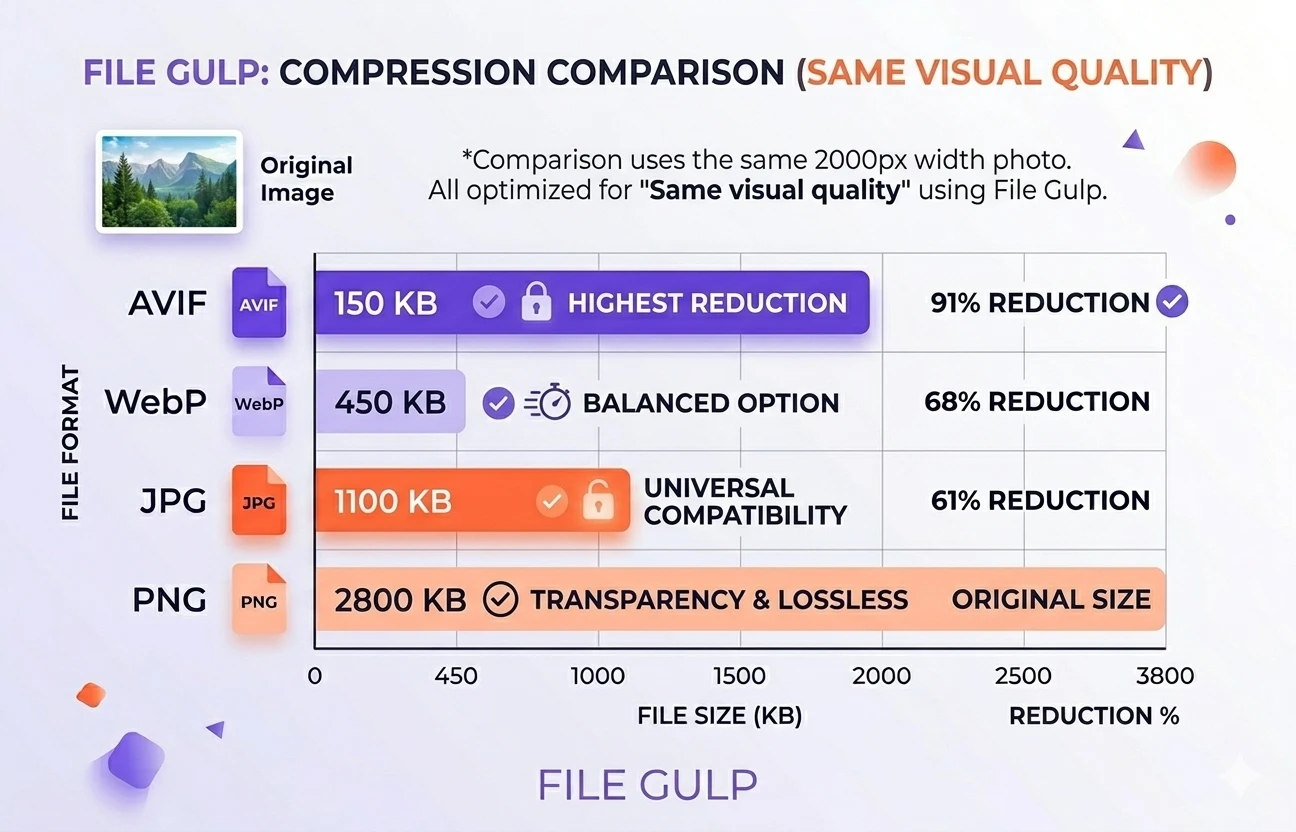
Between you and me, here’s the real secret: modern browsers are smart enough to handle multiple formats through the <picture> element. You can serve AVIF to browsers that support it, with WebP as a backup, and JPG as the final fallback. Best of both worlds.
Example:
<picture>
  <source srcset="hero.avif" type="image/avif">
  <source srcset="hero.webp" type="image/webp">
  <img src="hero.jpg" alt="Hero image">
</picture>
This way, modern browsers get the tiny AVIF file, older browsers fall back to WebP, and ancient browsers get the JPG. Everyone’s happy.
Real-World Decisions (Because Theory Only Gets You So Far)
Scenario 1: That Massive Hero Image
You bought a gorgeous stock photo, and it’s sitting there at 6MB like a bandwidth-eating monster.
The move: Don’t upload that beast as-is. First, use our image resizer to bring it down to sensible dimensions—maybe 1920px wide max. Then convert it to AVIF or WebP. Finally, run it through our image compressor to squeeze out the last few unnecessary bytes. You’ll probably end up with something under 200KB that looks identical to the original.
Scenario 2: Company Logo on a Colored Background
Your designer sent you a logo, and it needs to look crisp on both light and dark backgrounds.
The move: PNG all the way. Or lossless WebP if you want to be fancy. The file will be tiny anyway since logos don’t have millions of colors, so prioritize those razor-sharp edges over compression savings.
Scenario 3: Photo Gallery That’s Killing Your Page Speed
You’ve got 50 product photos, and your website feels like it’s running through molasses.
The move: Batch process everything. Resize them all to consistent dimensions, convert to WebP or AVIF, and compress them down. You’ll probably cut your total image weight by 70% without visible quality loss. This is where choosing the right format really pays off.
Scenario 4: Converting Old Image Libraries
You’ve got folders full of PNGs that should be JPGs, or HEIC files from your phone that need to be web-friendly.
The move: Convert systematically. Use our HEIC to JPG converter for phone photos, or switch oversized PNGs to JPGs when transparency isn’t needed. For metadata-sensitive images, run them through our metadata removal tool to protect privacy and reduce file size.
Your New Workflow (Simple, Fast, No Uploads Required)
Look, I get it. You don’t want to become an image format expert. You just want your stuff to work and load fast. Here’s the workflow I use, and you can do it all in your browser without uploading anything to random servers:
Step 1: Size matters (get your dimensions right)
Don’t serve a 4000px image in an 800px container. Use our resize tool first. This alone will often cut your file size in half. Most hero images don’t need to be wider than 1920px, and mobile images rarely need more than 800px.
Step 2: Pick your format with purpose
- Photos with lots of detail: Try AVIF first, WebP second, JPG as backup
- Logos and sharp graphics: PNG or lossless WebP
- Screenshots with text: PNG keeps text crisp
- When in doubt: WebP covers most bases beautifully
Step 3: Convert if needed
Your source might not be in the ideal format. The beauty of working with multiple formats is flexibility—you can always switch later without losing quality if you keep your originals safe.
Step 4: Compress with your eyes open
Use our image compressor, but actually look at the result at 100% zoom. Stop the moment you see artifacts or blurriness. The goal is the smallest file that still looks clean. Different content types can handle different compression levels—photos are forgiving, logos are not.
Step 5: Clean up metadata when appropriate
Photos often carry unnecessary data—camera settings, GPS coordinates, timestamps. Our metadata removal tool strips this stuff out. It can save a few KB and protects privacy without touching the actual image quality.
Quick Decision Guide
Still not sure? Here’s the fastest way to decide:
- Is it a logo or simple graphic that could be vector? Use SVG first, PNG backup.
- Is it a photograph or complex image? Try AVIF → WebP → JPG in that order of preference.
- Do you need transparency for compositing? PNG, lossless WebP, or lossless AVIF.
- Need bulletproof compatibility? Stick with JPG for photos, PNG for graphics.
- Serving to modern browsers only? WebP or AVIF will give you the best size-to-quality ratio.
The One Rule That Trumps Everything Else
Honestly? Keep your original files safe. Whether you shot in RAW, exported a massive PNG from design software, or downloaded a high-res JPG, keep that master file untouched somewhere safe.
Then create optimized copies for different uses. Need it for the web? Make a WebP copy. Sharing with a client? Create a JPG version. This way you never permanently lose quality, and you can always re-optimize as formats and requirements change.
I’ve seen too many people compress their only copy of an image, then need it bigger or in a different format later. Don’t be that person.
The Bottom Line
Stop overthinking the dropdown menu. Photos generally want compression (JPG, WebP, AVIF), logos want precision (PNG, lossless WebP), and when you can go vector, SVG wins everything.
The web is moving toward WebP and AVIF for good reasons—they’re smaller, more flexible, and supported by the browsers that matter. But JPG and PNG aren’t going anywhere, and they’re still the right choice in many situations.
Pick the format that matches your content, optimize for your actual display size, and always keep that original file safe. Your website speed—and your visitors—will thank you.
The tools are all here when you need them. No sign-ups, no uploads to random servers, just fast, private image processing that gets the job done.