
You take a photo of your new desk setup. Or your kid’s birthday cake. Or a “selling this couch” listing photo for a marketplace.
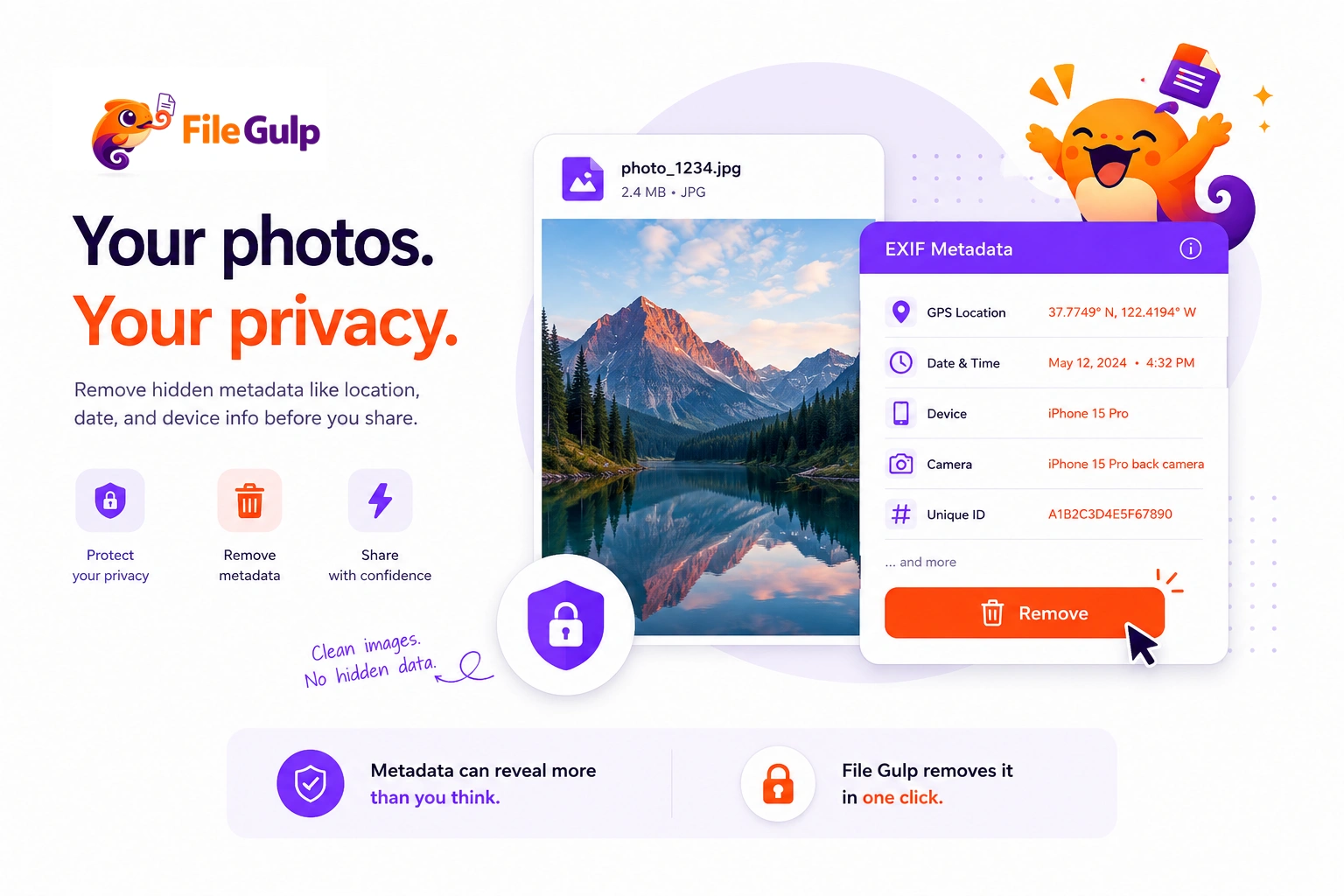
You post it, move on with your day… and you never once think about the fact that your camera may have attached a tiny “about me” note to that file. Not visible in the image. Not obvious in the post. Still there.
That note is often EXIF data—metadata that can include your location, the exact time the photo was taken, and the device you used.
Between you and me, EXIF is one of those things that sounds like a niche photography detail until you realize it’s also an accidental privacy leak.
This guide covers the practical stuff:
- what EXIF is (and what it isn’t)
- what kind of data it can contain (GPS is only the beginning)
- when EXIF is useful (yes, sometimes you want it)
- when EXIF is risky (public posts, clients, marketplaces, kids)
- how to check it
- how to remove it safely with Remove Image Metadata
The short version (if you just want the safe move)
If you’re sharing photos publicly or sending them to people you don’t fully trust:
- Remove EXIF/metadata: Remove Image Metadata
- Resize to the smallest useful size: Resize Image
- Compress so the file is lighter and faster to share: Compress Image
If the photo is iPhone HEIC and someone can’t open it:
- Convert first: HEIC to JPG
If you do just one thing from this article, make it step 1.
What EXIF data actually is
EXIF stands for Exchangeable Image File Format. It’s a metadata standard used by cameras and phones to store extra information about a photo inside the image file itself.
It’s maintained by the camera industry standards group CIPA. (CIPA EXIF)
Think of EXIF like the “behind the scenes” notes for a photo:
- camera model
- lens info
- shutter speed / ISO
- date/time
- and sometimes location (GPS)
It’s not part of the visible pixels, but it ships with the file unless something strips it out.
EXIF vs “metadata” (same thing or not?)
EXIF is one type of metadata.
When people say “metadata,” they might mean:
- EXIF (camera-captured data)
- IPTC (publisher/editorial info like captions, creator, rights)
- XMP (Adobe-style metadata that can include editing history, keywords, etc.)
A single photo can contain multiple metadata “blocks” in different standards.
If your goal is privacy, you typically care about all of it, not just EXIF—because anything that identifies you, your device, your workflow, your location, your timestamp, your name, your organization, can become a breadcrumb trail.
That’s why a “metadata remover” is usually the right tool, not a “GPS remover only.”
What EXIF can reveal (and what surprises people)
Let’s talk about what’s commonly stored. Not every file includes all of these, but phones are generous with details.
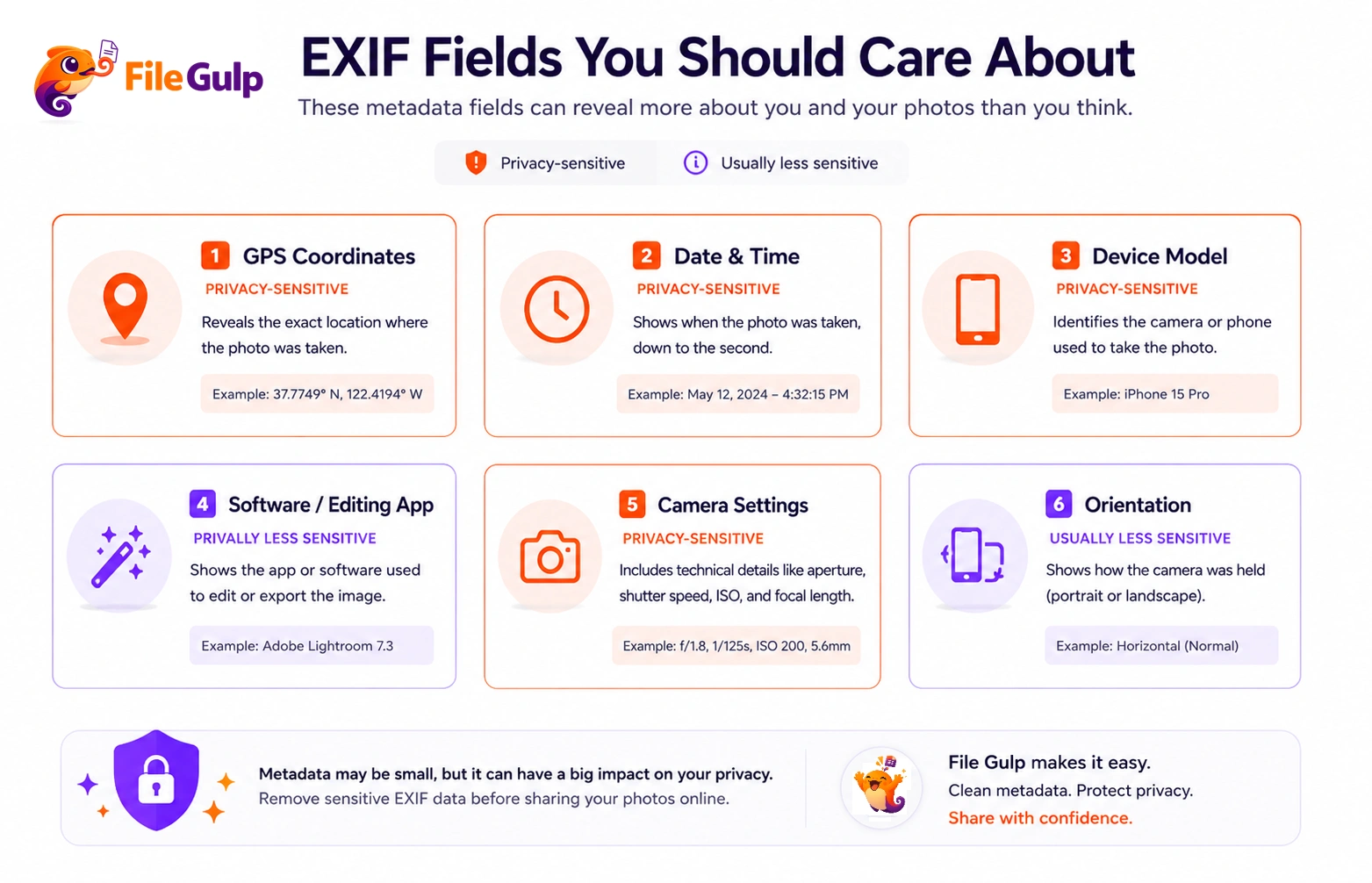
Common EXIF fields (real-world list)
- GPS coordinates (latitude/longitude)
- Altitude (sometimes)
- Date/time (exact timestamp)
- Device make/model (e.g., iPhone model)
- Camera settings (ISO, shutter speed, aperture, focal length)
- Orientation (how the camera was held)
- Software (sometimes the app used to edit/export)
GPS is the headline risk, but timestamps can also be sensitive. People don’t always want to reveal when they were home, when they traveled, or when a photo was taken—especially when combined with other context.
Why EXIF exists (and when it’s genuinely useful)
It’s easy to treat EXIF like a villain, but it was built for good reasons:
Photographers use EXIF for learning and consistency
If you’re improving your photography, EXIF is a teacher:
- “Why did this shot look cleaner?” → check ISO and shutter speed
- “How did I get that background blur?” → check aperture/focal length
Cataloging, searching, and organization
Photo apps can use EXIF date/time (and sometimes location) to:
- sort albums by day
- group vacations
- build timelines
Professional workflows and rights metadata (often IPTC/XMP)
Editorial and commercial workflows may include:
- creator/credit
- licensing info
- captions and keywords
So yes—sometimes you want metadata. The mistake is sharing that same rich file publicly when the audience doesn’t need it.
A useful mindset is two versions:
- Master (keep EXIF/IPTC/XMP for your archive)
- Share copy (strip metadata for privacy)
Why you should remove EXIF before sharing (the risks)
1) Location leaks (the obvious one)
If GPS is embedded, it can reveal:
- your home
- your workplace
- your kid’s school area
- where you’re staying during travel
And it doesn’t require hacking. It’s often a “view metadata” click.
A famous example: John McAfee’s location was reportedly revealed via EXIF data attached to a published photo. Wired covered the story and the role of embedded location metadata. (wired.com)
You don’t need to be famous for this to matter. If you sell items online, or post photos in community groups, location data can create risks you didn’t sign up for.
2) Time pattern leaks (quietly underrated)
EXIF timestamps can reveal routines:
- when you’re usually away
- when you take your kids to school
- when an office is occupied
- when you traveled (and how often)
On its own, that might sound harmless. Combined with other clues, it turns into a schedule.
3) Device and workflow fingerprints
Device model and software tags can enable:
- profiling (“this person uses this phone and edits with this app”)
- linking identities across platforms (in some OSINT contexts)
- unnecessary exposure in professional settings (journalists, activists, sensitive industries)
4) “I shared it with one person” becomes “it got forwarded”
This is the one that bites professionals.
You share a photo with a client, a coworker, or someone you met in a marketplace chat. They forward it. They upload it elsewhere. The metadata goes with it unless you removed it upfront.
Do social media platforms remove EXIF automatically?
Sometimes yes, often yes, not always, and not in every sharing path.
Many major platforms strip EXIF on upload, partly for privacy and partly because it reduces storage/processing overhead. Still, relying on platform behavior is like relying on strangers to lock your front door.
A safer model:
- If it’s public-facing or leaves your control, strip metadata yourself.
Where EXIF commonly survives (practical table)
| Sharing method | Does EXIF usually remain? | Why it matters |
|---|---|---|
| Email attachment | Often yes | The original file is sent intact |
| Cloud drive link (Drive/Dropbox) | Yes | The download is the original file |
| Forums / support portals | Varies | Some store originals, some strip |
| Social apps upload | Often stripped | Still not guaranteed across all apps/flows |
| Messaging apps (as file) | Often yes | “Send as document/file” tends to preserve |
If you’re unsure, assume it stays.
How to check EXIF data (without special software)
Sometimes you want to confirm what’s inside before you remove anything—especially for professional delivery files.
Here are common built-in options:
On iPhone / iPad
Apple’s Photos app shows some info (like location) in the “Info” panel. Apple also provides controls around location sharing in photos in different iOS contexts. (support.apple.com)
Your exact UI may vary by iOS version, but the core idea is the same: Photos can carry location, and you can choose whether to share it.
On Android
Many gallery apps show “Details” including location, device, and timestamp. Exact steps vary by manufacturer.
On Windows
Right-click → Properties → Details tab often reveals camera and GPS fields (if present).
On macOS
Open in Preview → Tools → Show Inspector → look for EXIF/GPS tabs.
This checking step is useful because it helps you build intuition: you start to notice which apps preserve metadata and which ones rewrite files.
How to remove EXIF safely (and what “safe” means)
When people say “remove EXIF,” they often mean one of two things:
- Remove location only
- Remove all metadata (EXIF/IPTC/XMP)
For privacy, option 2 is usually the calm choice.
The fast way: strip metadata in your browser
This removes metadata from the file so what you share is mostly just pixels (and basic file structure), not an accidental biography.
Because File Gulp tools run client-side, your photo can be processed in your browser without uploading it to a server first—useful when the whole reason you’re doing this is privacy.
What removal does not do
- It doesn’t blur faces.
- It doesn’t hide text that’s visible in the pixels.
- It doesn’t protect you from what’s in the background (shipping labels, license plates).
Metadata removal is a strong step, but it’s not the only step.
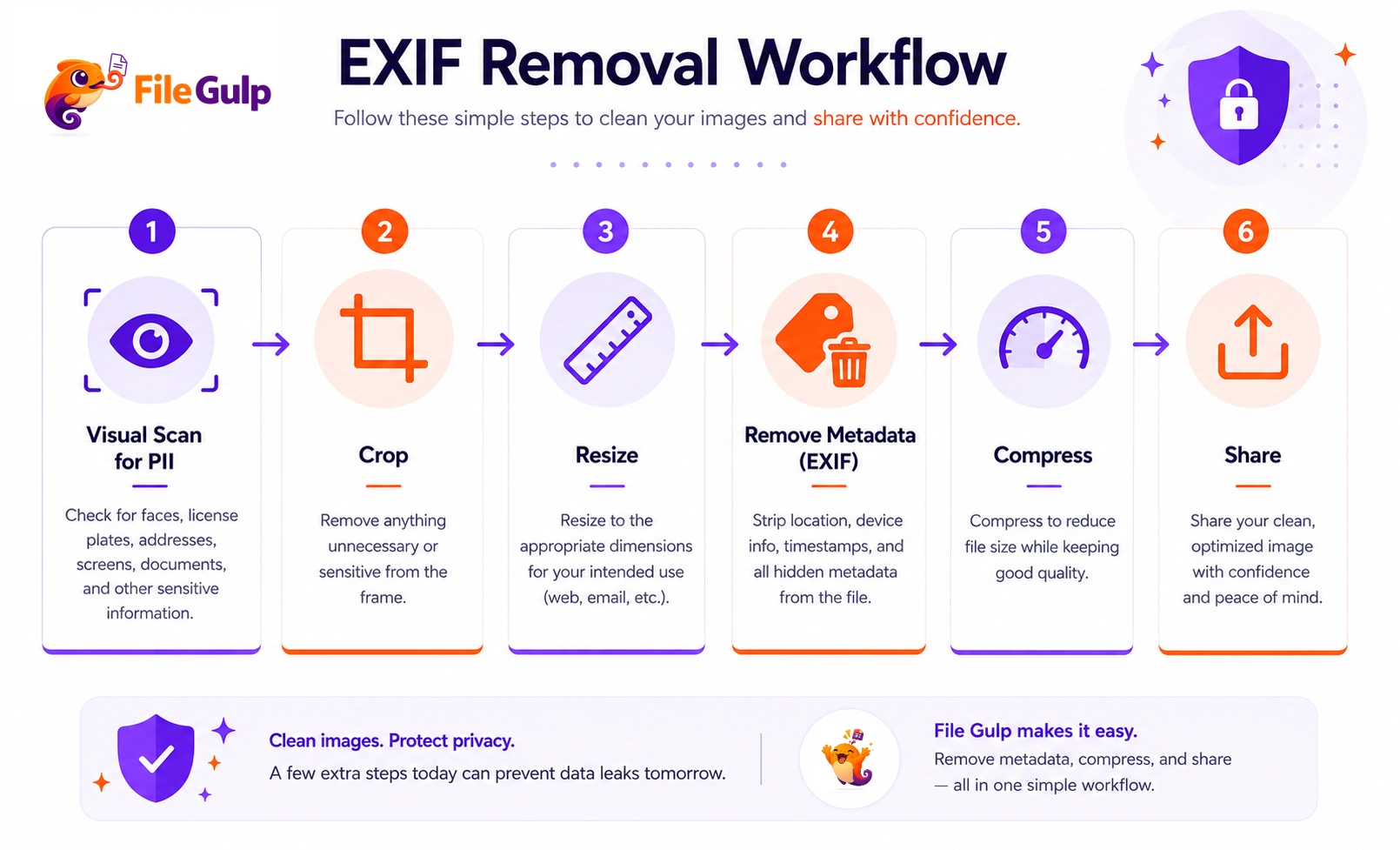
That’s why a realistic “safe share” workflow often looks like:
- Crop if needed: Crop Image
- Resize: Resize Image
- Remove metadata: Remove Image Metadata
- Compress: Compress Image
Visible vs invisible: EXIF removal won’t fix background leaks
This is the trap: people learn about EXIF and think, “Great—remove metadata and I’m safe.”
Not if the image includes:
- an address label
- a work badge
- a whiteboard with internal notes
- a laptop screen with emails
- a license plate
- a QR code on a ticket
If it’s in the pixels, it’s public.
A good habit is to do a 10-second “PII scan” before stripping metadata:
- zoom in on corners
- check reflections
- check screens
- check anything with text
Then use crop/resize to reduce risk:
The privacy principle behind this: data minimization
Privacy frameworks often come back to a simple principle: share what’s necessary, not what’s convenient.
In UK GDPR guidance, “data minimisation” means personal data should be adequate, relevant, and limited to what’s necessary. (ico.org.uk)
EXIF is rarely necessary for the viewer. It’s extra. So removing it is usually aligned with that principle.
Real-world scenarios (what to do, step by step)
Scenario 1: You’re posting a photo to a public social profile
Goal: people see the photo, not your coordinates.
- Scan the image for visible PII (labels, plates, screens)
- Crop if needed: Crop Image
- Strip metadata: Remove Image Metadata
- Optionally resize and compress for speed:
Scenario 2: You’re selling something online (marketplace listing)
Marketplace photos often include the most dangerous combo:
- background clutter + address labels + original file sharing
Do this:
- Crop aggressively: Crop Image
- Resize to 1200–1600px wide: Resize Image
- Remove metadata: Remove Image Metadata
Scenario 3: You’re sending photos to a client (professional courtesy)
Clients don’t need your GPS coordinates or device model.
A professional delivery flow:
- Create a delivery copy
- Remove metadata: Remove Image Metadata
- Compress if needed for email speed: Compress Image
If you also need compatibility (common with iPhone photos):
- Convert HEIC: HEIC to JPG
Scenario 4: You’re publishing images on your website
For web publishing, you care about speed and privacy.
A clean pipeline:
- Resize to the display size: Resize Image
- Convert to WebP: Image to WebP
- Compress: Compress Image
- Remove metadata: Remove Image Metadata
This gives you smaller, faster images with less privacy baggage.
EXIF and image orientation: the weird bug you’ve probably seen
Ever had a photo look upright in your phone, but sideways on a website?
That can happen because some images rely on an EXIF orientation tag to tell software how to display the photo. Not every system respects it the same way.
Two practical takeaways:
- If you remove metadata, you may remove that orientation hint.
- It’s smart to confirm the image looks correct after export.
If you need to fix orientation manually:
(Then strip metadata again if needed.)
FAQ (things people ask when they’re seconds away from sharing)
“If I remove EXIF, will the image quality change?”
No—metadata removal shouldn’t change the pixels. It’s not compression. It’s cleanup.
“Does removing EXIF reduce file size?”
A bit. Sometimes only a little. The bigger win is privacy, not megabytes.
If you need size reduction, that’s compression:
“Is EXIF the same as location services?”
Location services are what allow apps to record GPS coordinates. EXIF is one place that location can get stored when you take photos.
“Can someone find me just from the photo without EXIF?”
Sometimes, yes—through visible clues like street signs, reflections, landmarks, documents, or unique details.
Metadata removal is necessary in many cases, but it’s not the whole story.
A quick “safe share” checklist (copy/paste level)
- Did I scan for visible PII (labels, screens, QR codes, plates)?
- Did I crop anything sensitive? Crop Image
- Did I resize to a sensible size? Resize Image
- Did I strip metadata/EXIF? Remove Image Metadata
- Did I compress to keep it lightweight? Compress Image
If you keep your original masters untouched and create a “public copy” for sharing, this turns into muscle memory fast.
If you remember one thing
EXIF isn’t evil. It’s useful inside your own library.
It’s just not meant to be broadcast.
If a photo is leaving your control—public posting, client delivery, marketplaces, support tickets—strip the metadata first. Remove Image Metadata is the quiet, boring step that prevents loud, messy problems later.