
We’ve all been in this exact, mildly infuriating situation. You’re busy, focused, and deep in your workflow when an email chimes. Someone—a client, a colleague, or a real estate agent—has sent you a 150-page PDF. It’s a massive company report, a complex commercial contract, or perhaps your entire tax history from the last decade. Their message is casually simple: “Just sign page 42 and send it back.”
Or maybe you’re a teacher or a student. You have a massive digital textbook, and you need to share just chapter three for a group presentation. You can’t exactly email an 800MB file to five people without hitting every server limit known to man.
Your first instinct? It’s the same for 99% of people: you Google “free PDF splitter.” You click the first result, drag and drop your document, and wait for it to upload. Then you click “extract,” wait for the server to process it, and download the new file. Problem solved in a minute, right?
Well, not exactly. We need to talk about what just happened to that file during that “one minute.” If that document contained your social security number, business financials, client data, or a confidential legal agreement, you didn’t just split a file—you made a massive privacy gamble.
In this guide, we’ll explore why the “old way” of uploading PDFs is a ticking time bomb for your data, and how you can use modern browser technology to split documents instantly without them ever leaving your device.
The Hidden Danger of Cloud-Based PDF Tools
Let’s be honest: almost no one reads the terms of service on free utility websites. We just want the job done. But when you upload a PDF to a traditional cloud-based tool, you are handing over your file—and every bit of sensitive data inside it—to a remote server you know nothing about.
Even if the site features a friendly “we delete files after one hour” badge, you are relying entirely on blind trust. Here is why that is a problem:
1. The Vulnerability of Data in Transit
While your file is traveling from your computer to their server, it is “in transit.” If the connection isn’t perfectly configured or if there’s a “man-in-the-middle” vulnerability, your data can be intercepted. By uploading, you are unnecessarily expanding the “exposure window” of your document.
2. The Server-Side “Black Box”
Once the file is on their server, you lose all control. You don’t know if they keep temporary backups, if their server logs capture snippets of your data, or if their system is being scanned by malicious actors. Data minimisation principles—a core part of privacy laws like GDPR—dictate that you should only process what is necessary. Moving a whole file to a server just to extract one page is the exact opposite of that. (ico.org.uk).
3. The “Free” Cost
Running servers costs money. If a tool is free and requires an upload, you have to ask: how are they paying for the servers? Sometimes it’s ads, but sometimes it’s data. Your document metadata (who you are, what software you use, your location) is valuable.
The Modern Fix: Client-Side Processing
This is where the magic of the modern web comes in. Instead of you sending your file to a server, we send the “engine” to your browser. This is called client-side processing.
Think of it like this: The old way was like mailing a secret letter to a distant office just so they could photocopy one page and mail it back. The client-side way is like that office sending you a digital pair of scissors so you can do the cutting yourself, right at your own desk.
Why this is a game-changer:
- Absolute Privacy: Your file stays on your RAM. It never touches a disk other than your own.
- Speed: Since there is no “Upload” or “Download” of the actual file (which could be hundreds of megabytes), the process is near-instant.
- Offline Capability: Once the page is loaded, you could literally turn off your Wi-Fi and the splitter would still work.
Modern browsers use APIs like the FileReader and File System API to create a “sandbox” where this work happens safely. (developer.mozilla.org).
Step-by-Step: How to Split a PDF Without Uploading
Extracting exactly what you need is incredibly straightforward. Because we aren’t waiting for a server, the interface is snappy and responsive.
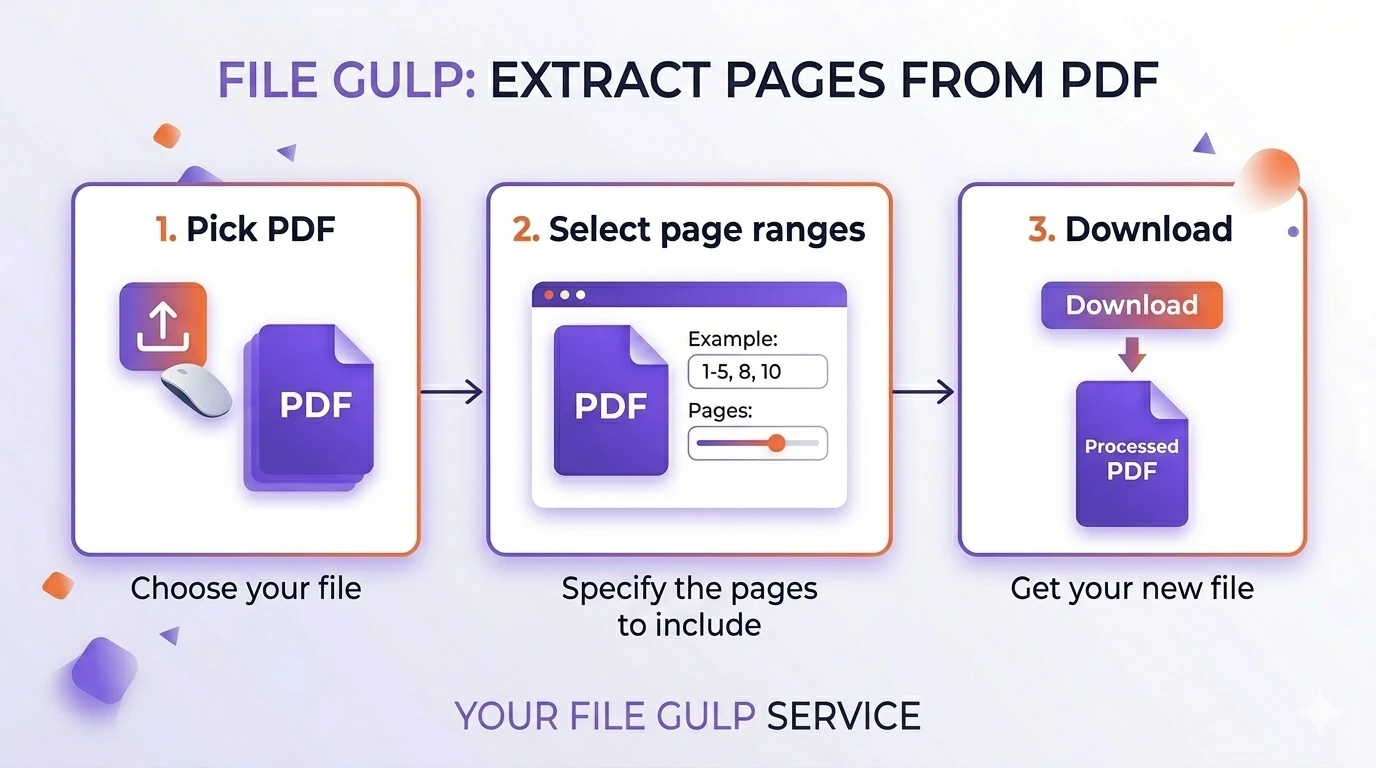
1. Open the Tool
Navigate to the Split PDF page. You’ll notice the page loads instantly because it’s a lightweight application designed to run in your browser.
2. Select Your File
Drag and drop your PDF into the workspace. Notice there is no “Uploading 15%…” progress bar. That’s because the file is being read locally by your browser’s memory.
3. Define Your Extraction
You have total flexibility here. You don’t have to just “split in half.” You can:
- Ranges: Type
5-12to get those specific pages. - Specific Pages: Type
1, 15, 42to pull non-consecutive pages. - Mixed: Type
1, 3, 20-30for a custom document assembly.
4. Hit “Split” and Save
The engine (often built on libraries like pdf-lib) rearranges the PDF structure in milliseconds. Your browser then triggers a “Save As” prompt. Done. Your 150-page monster is now a lean, 1-page document ready for signing.
Smart Workflows: Building the Perfect Document
Splitting is often just the first step. Because File Gulp tools all work in the browser, you can “chain” them together to create a professional, secure output.
Common Tool Combinations
| Your Goal | The Workflow “Combo” | Why it works |
|---|---|---|
| Email a massive contract | Split PDF → Compress PDF | Extracts the needed pages, then shrinks the file size locally to bypass email limits. |
| Share a secure, signed form | Flatten PDF → Remove Metadata → Protect PDF | Makes your signature un-editable, removes hidden “Author” tags, and adds a password. |
| Create a custom report | Split PDF → Merge PDF | Pulls pages from three different sources and stitches them into one clean file. |
Pro Tip: If you are submitting forms to a government agency or court, always Flatten your PDF. This “bakes” the text into the page graphics, ensuring it looks the same on every device and preventing others from changing your typed information. (alnb.uscourts.gov).
The “Silent” Threat: PDF Metadata
Even if you split a PDF and extract only one page, that new file might still be carrying “baggage” from the original. This is called Metadata (XMP).
PDF metadata can include:
- Your full name and company name.
- The exact date and time the original file was created.
- The software used (e.g., “Microsoft Word for Mac”).
- The path of the file on your local computer.
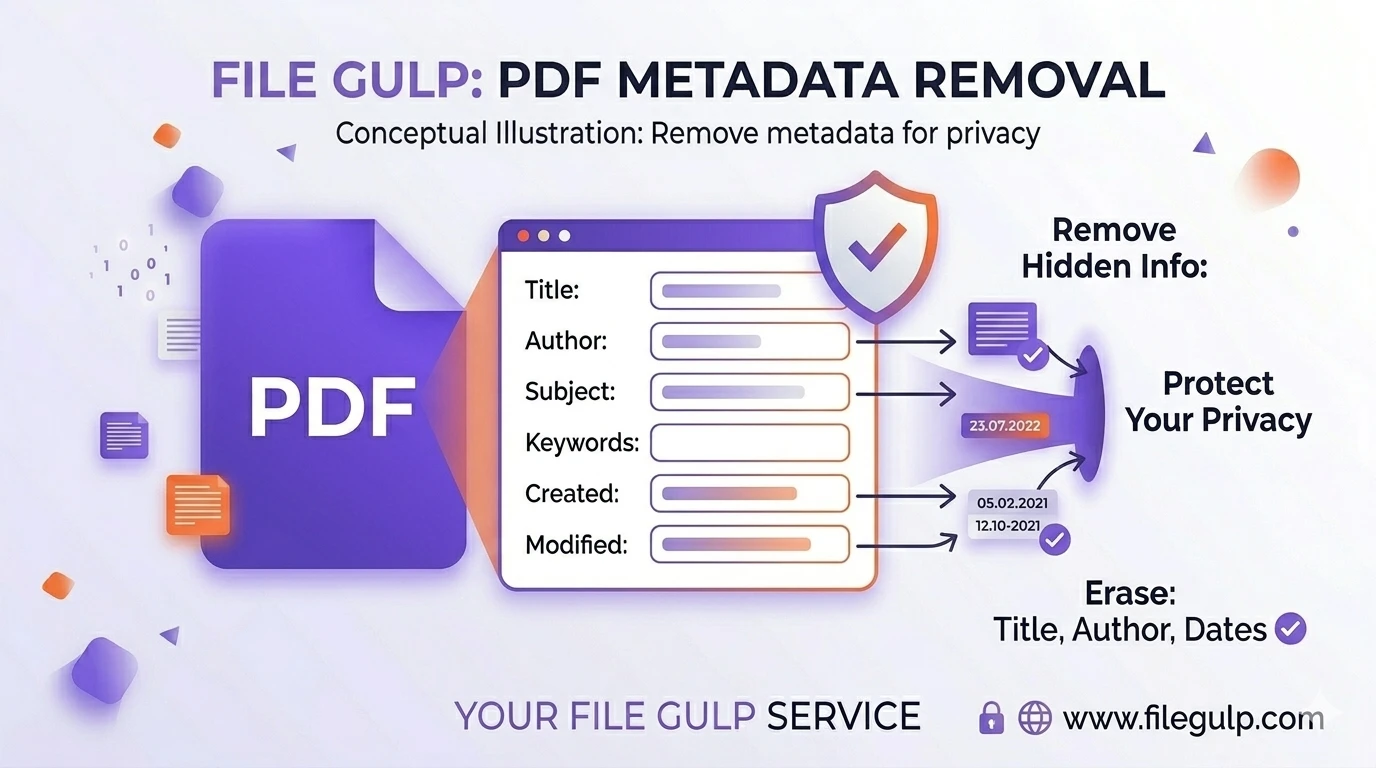
If you are sending a document to a competitor or a legal opponent, this metadata is a goldmine for them. Before you send your split PDF, run it through the Remove PDF Metadata tool. It’s like a digital “deep clean” that ensures only the visible content is shared. (helpx.adobe.com).
Practical Scenarios for Browser-Based Splitting
The Freelancer
You’ve finished a 10-item project, but the client only paid for the first 3. Instead of sending the whole portfolio, you split pages 1-3, compress them, and send a professional, lightweight sample.
The Real Estate Agent
You have a 100-page disclosure packet. The buyer only needs to see the specific “Lead Paint” disclosure on page 67. You extract that page, use the Protect PDF tool to add a password, and send it over—keeping the rest of the file’s sensitive data safe.
The Student
You are citing a specific chart from a 300-page academic study. You split the page with the chart, convert it to a high-quality image using PDF to JPG, and drop it directly into your presentation slides.
Mini FAQ
Q: Is there a limit to how many pages I can split? A: Since it uses your computer’s RAM, it depends on your device. Most modern laptops can handle 1000+ page PDFs without breaking a sweat.
Q: Does the quality decrease when I split? A: Never. Splitting a PDF is like moving pages from one folder to another; the actual “rendering” of the text and images isn’t changed, so it stays crisp.
Q: Why should I trust your browser tool over a big-name cloud tool? A: You shouldn’t trust anyone blindly. The beauty of browser-based tools is that you can verify they aren’t uploading files by checking your “Network” tab in the browser or even by using them while offline.
The Bottom Line
Managing your documents shouldn’t feel like a compromise between convenience and security. The “upload-to-cloud” era is ending because it’s slow and risky.
By embracing client-side tools, you get the best of both worlds: the speed of your own hardware and the privacy of a locked room. The next time you need to extract a single page from a massive report, skip the risky uploads. Keep your data on your device, and keep your business strictly your business.
Ready to try it? Head over to our Private Split PDF Tool and experience the speed of local processing for yourself.
More Private PDF Tools:
- Merge PDF - Combine files locally.
- Compress PDF - Shrink files without losing quality.
- Remove Metadata - Scrub hidden info from your documents.
- Protect PDF - Add strong encryption to your exports.