
Let’s be real for a second. You’re applying for a mortgage, signing a new job offer, or submitting a freelance portfolio, and the portal demands “Upload a single PDF.” Your ID is one file, your tax return another, and the signed contract a third. Whether you are figuring out how to merge bank statements into one pdf or combining contracts, you Google “merge PDF,” find a free site, start dragging your documents in…and that little voice asks, “Where are these files actually going?” Honestly, that voice is right. You don’t need to gamble with your data because you can simply merge PDF files without uploading them—keep everything on your device, right inside your browser.
Pro‑tip: Browsers can only read files you explicitly select, and broader read/write access requires your permission via the File System Access API—by design, for privacy. (developer.mozilla.org).
Why merge PDF files without uploading them
Between you and me, the biggest win isn’t just speed—it’s trust. When you need to combine sensitive documents privately, keeping things local is key.
- Privacy by default. Your files stay local, so there’s no transmission, third‑party storage, or “we’ll delete it in an hour” fine print. (developer.mozilla.org).
- No waiting on uploads. Big scans or image‑heavy PDFs? Using an offline pdf merger for browser skips the slowest step on the internet: the network.
- Total control. Set the order, drop irrelevant sections, and save instantly.
- Fewer failure points. No queues, timeouts, or expiring download links.
Step‑by‑step: merge PDFs locally in your browser
This takes about a minute and feels refreshingly straightforward.
-
Open the tool
Head to Merge PDF. -
Add your files
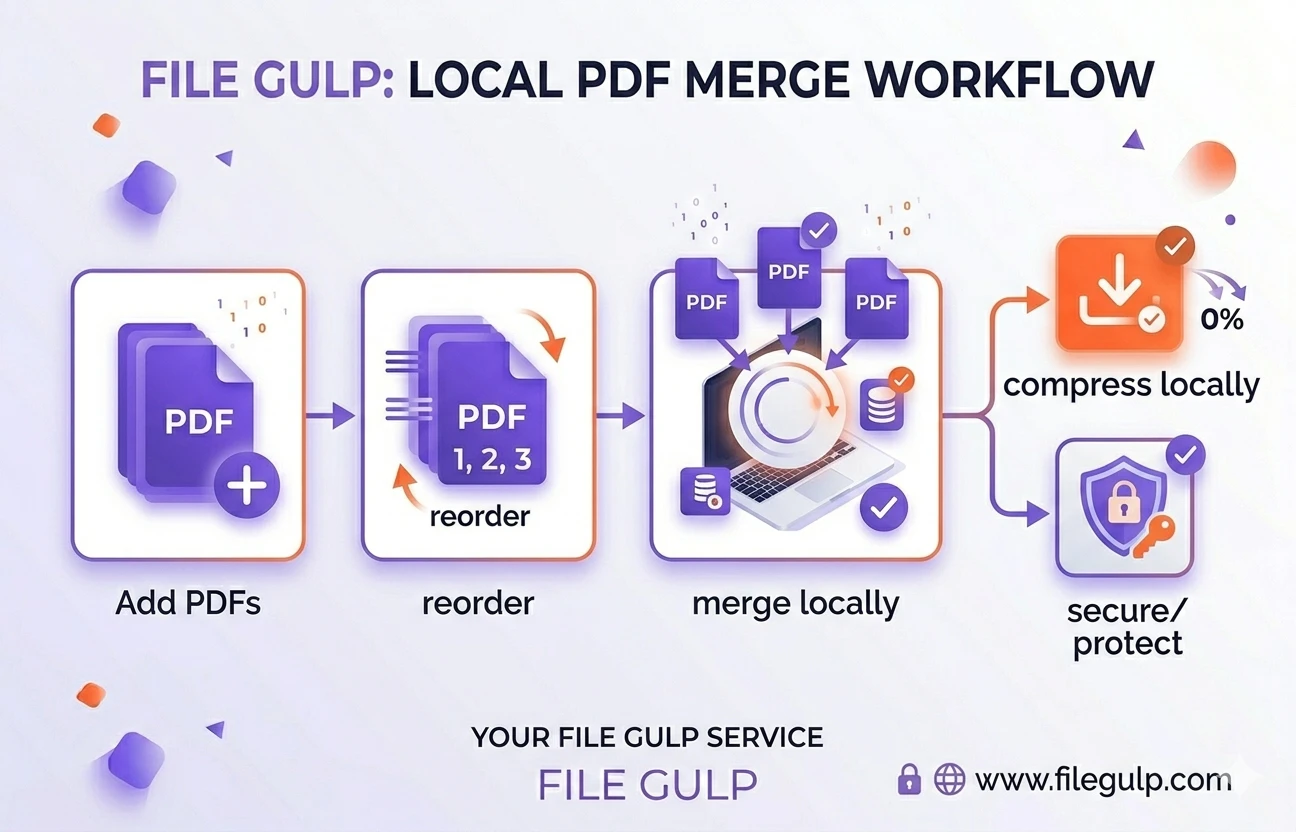
Drag and drop all PDFs at once into this secure client-side pdf merger, or add them one by one. -
Reorder with intent
Drag to arrange them—contract → annex → invoice → signature page—so the final document reads cleanly. -
Optional: split before you merge
If a source file has extra chapters or blank pages, trim first with Split PDF to keep the final result tight. -
Merge
Click merge. Your browser stitches a single, tidy PDF locally for a true merge pdf no server upload experience. No uploads. No waiting. -
Right‑size the final file
If the result is still heavy for email or portals, use Compress PDF to shrink embedded images while keeping text crisp. -
Add a password when needed
If it’s sensitive, encrypt it with Protect PDF before sending.
When local beats the cloud (and when it doesn’t)
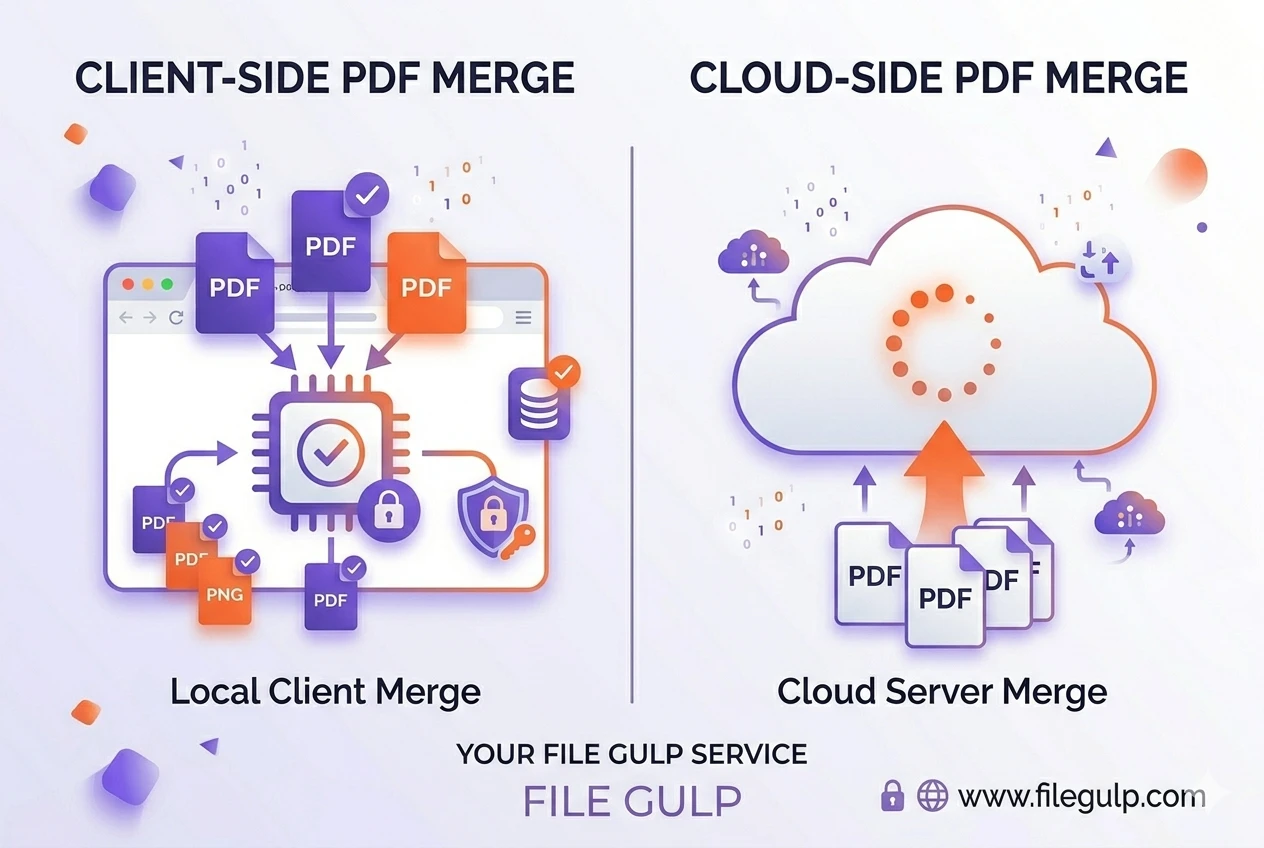
Let’s be real: cloud tools have their place. But for personal, HR, or client work—especially when you need private pdf tools for legal documents—keeping the whole process on your machine is calmer and safer.
| Approach | Privacy | Speed | Size Limits | Setup | Best For |
|---|---|---|---|---|---|
| Client‑side (File Gulp in browser) | Files stay on your device; no server uploads | Instant (no upload/download) | Limited mainly by your device | None | Sensitive docs, quick one‑offs, everyday workflows |
| Cloud uploaders | Files sent to remote servers | Slower (upload + download) | Often capped; queues/timeouts | None | Shared team pipelines, remote storage needs |
| Desktop apps | Local by default | Fast (after install) | Few limits | Install + updates | Heavy offline workflows, large batches |
Pro‑tip: PDF is an open ISO standard (ISO 32000), which is a big reason teams rely on it for “final delivery” and long‑term archives. (wikipedia.org).
Smart finishing touches (so your PDF feels “done”)
Small moves add polish—and save you from resending later.
- Compress for sending: After merging, run Compress PDF and balance size vs. clarity to pass email/portal limits.
- Split variants quickly: Need a “client copy” without annexes? Use Split PDF on the merged master—no juggling files again.
- Protect what matters: Encrypt client or HR docs with Protect PDF.
- Name with intent: Clear filenames prevent back‑and‑forth. Think
Acme‑SOW‑v3‑signed.pdfinstead offinal_final(3).pdf.
A realistic 60‑second merge recipe
- Drop all files into Merge PDF.
- Reorder pages; remove duplicates.
- Merge locally.
- If required, Compress PDF to meet caps.
- If sensitive, Protect PDF with a strong password.
Common pitfalls (and how to dodge them)
- Massive scans from a copier. These are image‑only pages; after merging, use Compress PDF to reduce image streams while keeping text sharp.
- Jumbled order. Preview thumbnails and group related sections so your story reads cleanly.
- Sensitive fields visible. Redact in a dedicated editor first, then merge and Protect PDF for email transit.
- Portal rejects the upload. Some systems hard‑cap size. Compress first; if it still fails, split and upload in parts using Split PDF.
Frequently Asked Questions
Is merging PDFs locally actually safer?
Yes. Client‑side processing keeps files on your device; browsers can only access files you select, and broader disk access requires explicit permission. (developer.mozilla.org).
Will the merged file be too big for email or portals?
It depends on sources. After you merge, optimize with Compress PDF to shrink images and reduce size without wrecking text.
Can I remove or reorder pages before merging?
Absolutely. Use Split PDF to extract or discard pages first, then merge the exact sequence you want with Merge PDF.
How do I keep a client document private after merging?
Encrypt it before sending. Open Protect PDF, set a strong password, and share the password via a separate channel.
Is PDF a safe long‑term format?
PDF is standardized as ISO 32000 and designed for consistent rendering across systems, which is why it’s a common “final delivery” format. (wikipedia.org).
Try it now: drag your files into Merge PDF, tidy the order, merge locally, then finish with Compress PDF or Protect PDF. Fast. Quiet. Private.