
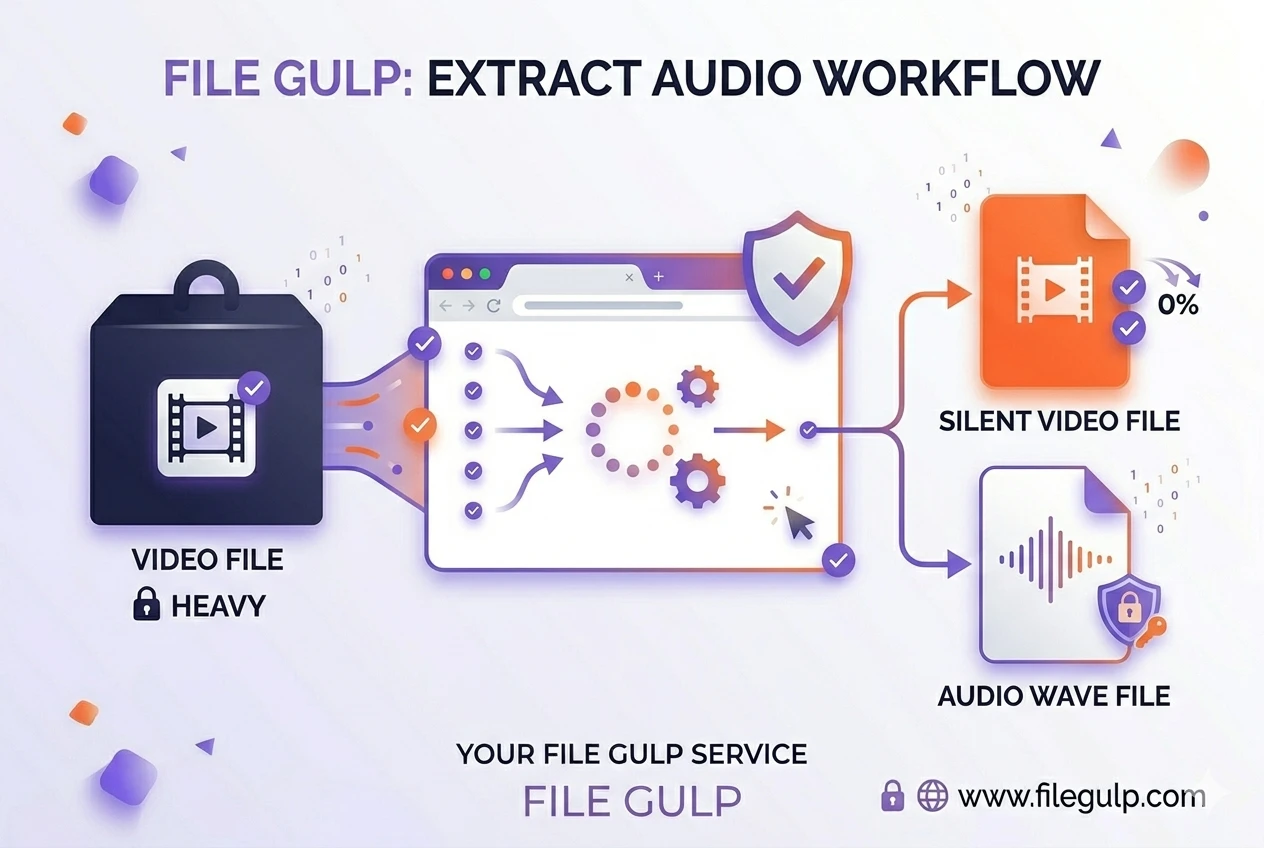
Let’s be real for a second. You just recorded a brilliant two-hour Zoom meeting, or maybe you downloaded a massive university lecture. You want to listen to it on your phone while commuting, but keeping a video player open just to hear the audio is a massive drain on your battery and data. You search “how to extract audio from video,” and a dozen sites ask you to upload a 2GB file to their server—slow, risky, and frankly unnecessary. The good news: you can safely extract audio from video directly in your browser—instant, private, no uploads required.
Pro‑tip: Browsers can only access files you explicitly choose, and broader read/write requires your permission (File System Access). That design protects your privacy by default. (developer.mozilla.org).
Why local audio extraction is a game changer
When you keep processing on your device, you skip the slowest, least private part of “online converters”: network transfer. Zero upload time, fewer failure points, and your files never touch a third‑party server. The browser’s sandbox and APIs make this practical and safe for everyday users. (developer.mozilla.org developer.mozilla.org).
The magic behind the scenes: FFmpeg + WebAssembly
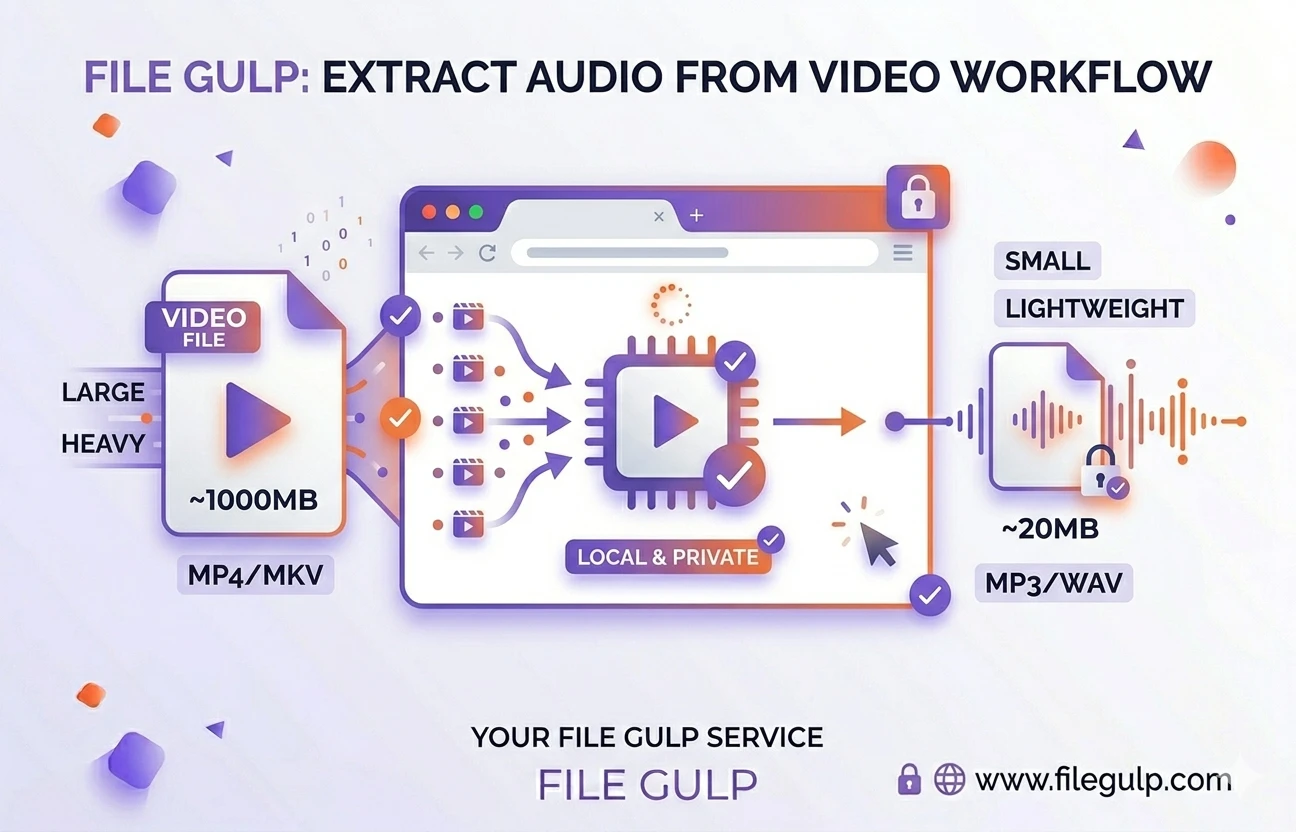
Here’s the simple version. FFmpeg is the industry‑standard engine that most platforms use for media conversion; in recent years it’s been compiled to WebAssembly (“FFmpeg‑wasm”), so it runs at near‑native speed inside a browser tab. Your browser loads that Wasm module, reads the video you selected, demuxes or transcodes the audio track, and writes the result—entirely in your device’s memory and storage. No server in the loop, just a secure sandbox doing real work locally. (developer.mozilla.org github.com).
Step‑by‑step: How to extract audio from video (client‑side)
- Open the tool: drop your file into Extract Audio.
- Pick your target: MP3 for universal playback, WAV (PCM) for lossless editing, Opus for tiny speech files, or AAC if you live in the MP4/MOV world. (developer.mozilla.org).
- Extract: the engine runs locally and offers the audio for download—no upload, no waiting.
- Optional polish:
- Need a different format/bitrate? Use Audio Converter.
- Want a silent version of the video for B‑roll? Use Video Muter.
- Keeping the video but it’s too big? Run it through Video Compressor.
- Know you just need MP3 from MP4? Shortcut to MP4 to MP3.
Pro‑tip: If the container already holds the format you need, you can “demux” (copy the audio stream without re‑encoding) for identical quality and speed. Containers (MP4/WebM) and codecs (AAC/Opus/MP3) are separate concepts. (developer.mozilla.org).
Choose the right audio format (MP3, AAC, Opus, WAV/PCM)
Below is a practical comparison table you can actually act on. Use it to balance quality, compatibility, and size.
| Format | Compression | Great for | Pros | Watch‑outs |
|---|---|---|---|---|
| MP3 | Lossy | Universal listening, podcasts, sharing | Works almost everywhere; easy distribution. | Larger than Opus/AAC at the same perceived quality; not lossless. (developer.mozilla.org wikipedia.org). |
| AAC (M4A) | Lossy | MP4/MOV ecosystems, phones/tablets | Efficient and widely supported in MP4. | Still lossy; licensing in some contexts. (developer.mozilla.org). |
| Opus | Lossy (modern) | Lectures, voice notes, low‑bitrate music | Excellent quality at low bitrates; great for speech/WebM. | Some legacy players lack native .opus support. (developer.mozilla.org wikipedia.org). |
| WAV (PCM) | Lossless/uncompressed | Editing, archiving, mastering | Bit‑perfect; ideal for DAWs and post. | Huge files; not suitable for casual sharing. (developer.mozilla.org wikipedia.org). |
Pro‑tip: For speech, Opus at low bitrates often beats MP3 on clarity per byte; for archival or heavy editing, keep a WAV master and publish MP3/AAC/Opus derivatives. (developer.mozilla.org).
Quick recipes (copy‑and‑go)
- Turn a recorded talk into a podcast: extract to MP3 at a moderate bitrate; if still large, convert down a notch with Audio Converter.
- Lightweight standup notes: extract to Opus for tiny, clear speech files you can share quickly. (developer.mozilla.org).
- Archival stem for later editing: extract to WAV (PCM) to keep a pristine source. (wikipedia.org).
Pro tips from the trenches
- Trim dead air first (intro/outro) to save time and bytes before extraction.
- Downmix to mono for voice; you’ll cut bitrate needs roughly in half with little intelligibility loss for speech.
- Match the sample rate to the source; upsampling doesn’t add quality, it just adds size.
- Keep a lossless master (WAV), publish smaller MP3/AAC/Opus for distribution.
- Respect rights and privacy; only extract audio you’re allowed to use.
Troubleshooting (so you don’t get stuck)
- Output is huge: choose MP3 or Opus instead of WAV, or convert to a lower bitrate via Audio Converter. (developer.mozilla.org).
- Player won’t open .opus: re‑containerize to WebM or convert to MP3 for maximum compatibility. (developer.mozilla.org).
- Need video with no sound: skip extraction and make a silent copy with Video Muter.
- Upload limits on a portal: if you must keep the video too, compress it locally with Video Compressor after saving the audio.
- No audio track found: some screen captures are silent; verify the source has an audio stream before extracting.
Frequently Asked Questions
Does extracting audio lower quality?
Not if you demux the original stream—copying audio out of the container preserves the exact bits; transcoding is only needed to change formats/bitrates. (developer.mozilla.org).
How can a website do this without installing an app?
WebAssembly runs high‑performance code inside the browser’s sandbox at near‑native speed, enabling real media work without native installs. (developer.mozilla.org).
Is this really private if it runs in my browser?
Yes. The tool only reads files you select; broader disk access requires explicit permission, and processing happens locally. (developer.mozilla.org).
Which format should I choose—MP3, AAC, Opus, or WAV?
MP3 is universal, AAC fits MP4/MOV pipelines, Opus excels at low bitrates (speech/streaming), and WAV (PCM) is lossless for editing/archival. (developer.mozilla.org wikipedia.org).
Can I extract audio from YouTube videos with this tool?
No. Client-side tools require you to actually have the video file on your computer. You cannot paste a YouTube URL into a strictly client-side tool because your browser needs the physical file data to process it locally.
Try it now: drop your clip into Extract Audio, pick MP3/WAV/Opus, save locally, then fine‑tune with Audio Converter. If you’ll also keep the video, consider Video Compressor—and if you need silence for B‑roll, use Video Muter. For a one‑click route, head straight to MP4 to MP3.