

Let’s be real for a second. You just recorded a quick, 45-second screen capture for a coworker, or maybe a quick clip of your dog doing something hilarious. You drop it into Slack, Discord, or an email draft, and immediately get slapped with the internet’s most annoying roadblock: “File exceeds the 25MB attachment limit.”
You check the file size, and somehow, your 45-second video is 300MB.
Your first instinct is to Google a free video compressor, but almost every site out there demands that you upload your massive file to their remote servers first. Honestly, that’s completely backward. If your internet is already struggling to send a 300MB file to your coworker, why would you wait twenty minutes to upload it to a random third-party server just to shrink it?
Here’s the thing: you don’t have to. You can compress video files for faster sharing directly on your own device, right inside your web browser. Let’s break down why modern videos are so obnoxiously huge, the danger of cloud compressors, and how you can shrink your files instantly without compromising your privacy.
Why Are Video Files So Massive Anyway?
Before we shrink anything, it helps to understand what makes a video heavy. Between you and me, most of us are walking around with cinema-grade cameras in our pockets without realizing it.
Modern smartphones and screen recorders default to aggressively high settings. A video’s file size is dictated by three main culprits:
- Resolution: If you are shooting in 4K (3840 × 2160), your phone is capturing over 8 million pixels per frame.
- Framerate (FPS): At 60 frames per second, that is 480 million pixels your device is processing every single second.
- Bitrate: This is the most critical factor. Bitrate is the amount of data stored per second of video. High bitrate means stunning, crisp detail, but it results in absolutely massive files.
Pro-Tip: If your only goal is to show a bug to a developer or send a funny clip to a friend, they do not need to see it in 4K HDR at 60 FPS. Dropping the resolution to 1080p or even 720p will drastically reduce the file size while remaining perfectly watchable. (Read more about video codecs and containers on MDN Web Docs).
The Cloud Upload Trap
For over a decade, the standard advice for shrinking a video was to use a cloud-based converter. You upload your heavy MP4, their server transcodes it, and you download the lighter version.
But as we discussed in our guide on client-side processing privacy, this method is deeply flawed today for two main reasons:
- The Privacy Gamble: Are you compressing a video of an unreleased product, a private Zoom meeting, or your kids? Handing those files to an anonymous server is a major security risk. You have zero guarantees about who is viewing or backing up that footage.
- The Speed Bottleneck: Uploading a 2GB video on a standard home Wi-Fi connection can take upwards of half an hour. By the time it’s uploaded, compressed, and downloaded again, you’ve wasted entirely too much time.
Step-by-Step: How to Compress Video Locally in Your Browser
Thanks to technologies like WebAssembly, modern web browsers are incredibly powerful. They can run professional-grade video encoding engines (like FFmpeg) locally. This means your computer’s processor does the work, and the file never touches the internet.
Here is the exact, friction-free workflow to compress video files for faster sharing:
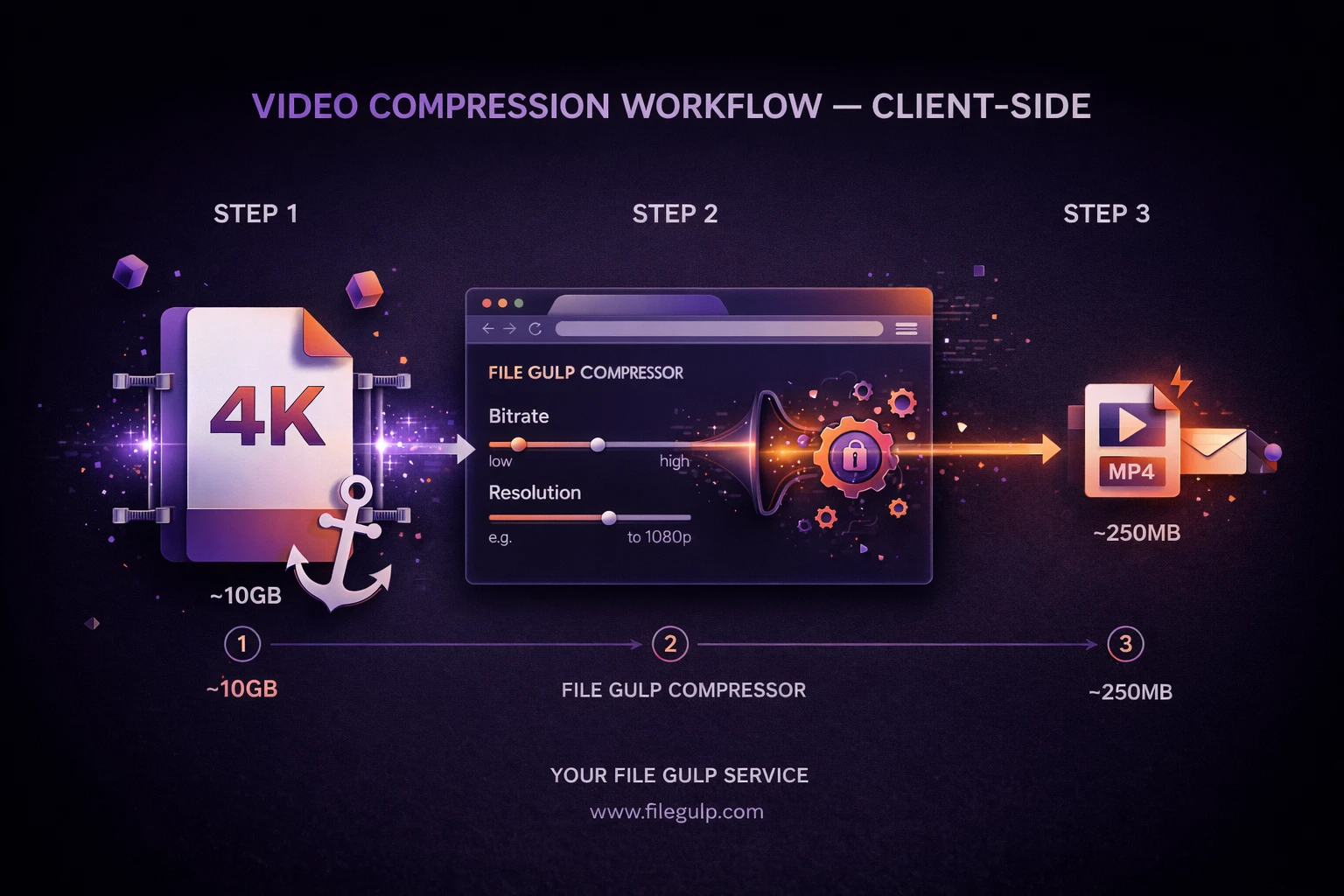
- Open the Tool: Head over to our strictly client-side Video Compressor.
- Drop Your Heavy Video: Drag and drop your massive file into the browser. It will load instantly because it’s not uploading anywhere; it’s just being read by your local machine.
- Choose Your Target Settings: You can let the tool automatically optimize it for web sharing, or you can manually scale down the resolution (e.g., from 4K to 720p) and lower the bitrate.
- Hit Compress: Your browser will re-encode the video locally.
- Save and Share: The new, lightweight MP4 is ready to be emailed, dropped into Slack, or sent via WhatsApp.
Pro Workflows: Shrinking Videos Beyond Just Compression
Sometimes, simply tweaking the bitrate isn’t enough, or it degrades the visual quality too much for your liking. If you are struggling to get under a strict 25MB email limit, you can combine a few other smart tactics. Because our tools run locally, you can bounce between them in seconds.
1. Cut the Dead Air First
Did you leave the screen recorder running for 10 seconds before you actually started talking? That dead air is wasted data. Before you compress, run the original file through the Trim Video tool. Snipping off the unnecessary start and end points is the easiest way to shed megabytes without touching the video quality.
2. Strip Out Unnecessary Audio
Audio tracks take up a surprising amount of space inside a video container. If you are sharing a quick screen recording of a software bug, or B-roll footage for a presentation, the audio is completely useless. Drop the file into our Video Muter to permanently remove the audio stream, instantly reducing the overall file size.
(Alternatively, if you ONLY want the audio and don’t care about the video, you can extract the audio track entirely).
3. Ensure Maximum Compatibility (MP4)
If you recorded the video using a browser extension, it might have saved as a .webm file. While WebM is incredibly efficient, it isn’t universally supported by older email clients or native Apple apps. To ensure your recipient can actually watch the video after you send it, run it through the WebM to MP4 converter. MP4 (using the H.264 codec) is the undisputed king of universal playback.
Video Compression Cheat Sheet: Resolution vs. Target Platform
If you aren’t a video editor, terms like “bitrate” and “720p” can feel abstract. Use this handy table to decide how aggressively you should compress your video based on where you are trying to send it.
| Destination | Typical File Limit | Suggested Resolution | Suggested Bitrate | Quality Impact |
|---|---|---|---|---|
| Email (Gmail/Outlook) | 20MB - 25MB | 720p (HD) | 1,500 - 2,500 kbps | Acceptable for screens |
| Discord (Free tier) | 25MB | 720p or 480p | 1,000 - 1,500 kbps | Noticeable compression |
| 16MB (Standard) | 480p (SD) | ~1,000 kbps | Heavy compression | |
| Slack / Teams | Varies (often 1GB+) | 1080p (Full HD) | 4,000 - 6,000 kbps | Near-original quality |
| YouTube / Vimeo Upload | Massive | 4K or 1080p | 10,000+ kbps | Highest quality |
Pro-Tip: Remember that compression is an art of compromise. If you need a file to be under 16MB for WhatsApp, you have to accept that a 4K video will lose some sharpness. It is simple math: less data means fewer details.
Reclaim Your Bandwidth and Privacy
We have been conditioned to believe that handling heavy media files requires expensive desktop software or shady online services. That simply isn’t true anymore. The web has evolved.
The next time your email client refuses to attach a video, don’t panic. Take a breath, avoid the sketchy “Free Video Compressor” sites that want to steal your data, and handle the job locally. Compress video files for faster sharing right in your browser, keep your private footage strictly your own, and get back to your actual work.
Frequently Asked Questions
- Will compressing my video ruin its quality? It depends on how far you push it. Video compression is inherently “lossy,” meaning it throws away invisible or redundant data to save space. If you compress a 500MB video down to 300MB, you probably won’t notice a difference. If you compress it down to 10MB, the image will likely look blocky or blurry.
- hat is the absolute best format for sharing video? Without question, MP4 encoded with H.264. It is not the newest or most efficient codec in the world, but it boasts nearly 100% universal compatibility across Windows, Mac, iOS, Android, and every major web browser.
- Why does my phone shoot such massive videos by default? Smartphone manufacturers want their camera specs to look amazing on paper. They default to 4K resolution at 60 frames per second because it looks stunning on high-end TVs. However, for 99% of daily messaging and email tasks, these settings are wildly unnecessary. You can actually lower this default in your phone’s camera settings.
- Is it faster to compress client-side or server-side? Client-side is almost always faster for large files. With a server-side tool, you have to wait for your upload speed (which is usually much slower than download speed), wait for their server queue, and then download the file. Client-side tools start processing instantly at the speed of your local CPU.
- Can I compress a video if I don’t have an internet connection? Yes. Once you have loaded the File Gulp Video Compressor page in your browser, the underlying WebAssembly engine is cached. You can disconnect from Wi-Fi and continue compressing files perfectly, as everything is happening locally on your hardware.