
The short version
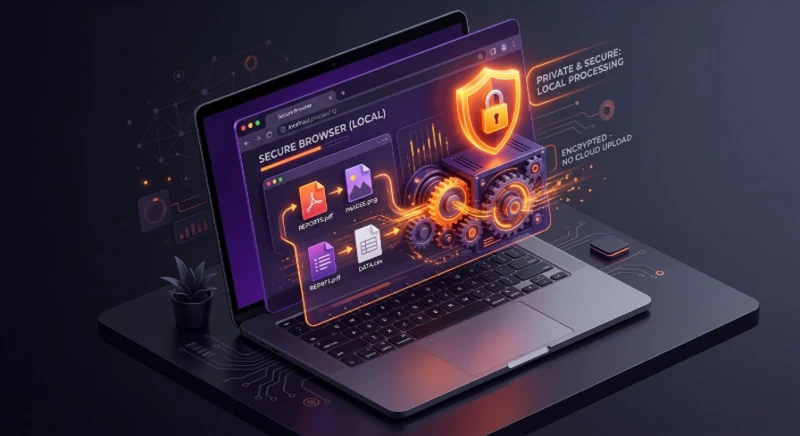
Between you and me, most of us just want tools that do the job—quickly, safely, and without drama. Client‑side processing does exactly that: your files are handled right in your browser, so they never leave your device unless you decide to upload them. That simple shift has big implications for privacy, speed, and control. (developer.mozilla.org).
What “client‑side processing” actually means
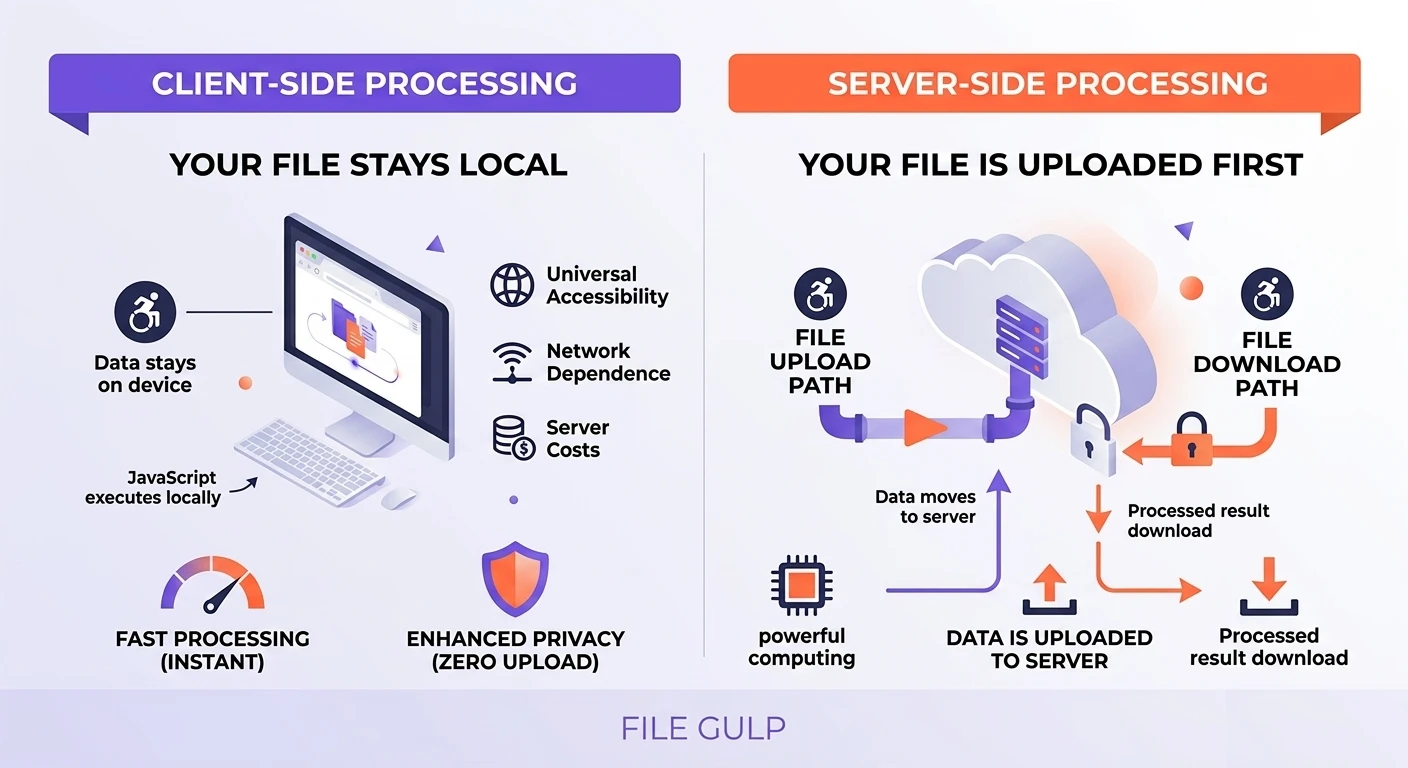
Client‑side processing means the work—compressing, converting, trimming, splitting—runs locally in your browser using modern Web APIs (File APIs, Web Workers) and technologies like WebAssembly that bring near‑native performance to the web. (developer.mozilla.org developer.mozilla.org).
By contrast, server‑side tools upload your file to a remote server where processing happens. That can be fine for some jobs, but it does mean your file leaves your machine.
A quick privacy note
Browsers can only read files you explicitly select—there’s no magic “peek into your disk” trick. You choose the file; the code processes that chosen file in memory or temporary storage under your origin, and broader read/write access requires explicit user permission via the File System Access API. (developer.mozilla.org developer.mozilla.org).
Why it matters for privacy (and peace of mind)
- Less exposure: if the file never leaves the device, you reduce the risk surface of transmission, storage, and third‑party access—this aligns with “data minimization” as a core privacy principle. (ico.org.uk gdpr-info.eu).
- Fewer surprises: no background queue living on someone else’s server.
- Local control: you can clear your browser data or use a private window whenever the job is done.
Fair to say: client‑side isn’t a silver bullet—malware on your device is still malware—but it removes an entire class of network and server‑storage risks.
Why it also feels faster
Uploads are the silent time sink. When you avoid them, you skip network bottlenecks and get instant feedback. On the performance side of the open web, heavier pages correlate with slower Largest Contentful Paint (LCP), and the network is often the slowest link in the chain—keeping work local helps you dodge that tax. (almanac.httparchive.org).
And for heavy lifting—like video and audio—WebAssembly has changed the game: projects such as FFmpeg.wasm bring the battle‑tested FFmpeg toolchain into the browser, so you can transcode and extract without sending media anywhere. (developer.mozilla.org github.com).
Real‑world jobs you can do locally (with File Gulp)
- Shrink a batch of photos before publishing: try Compress Image, and if the image is too big in dimensions, start with Resize Image. Remove sensitive EXIF with Remove Image Metadata.
- Convert iPhone photos for universal compatibility: HEIC to JPG or HEIC to PNG.
- Tame PDFs without leaks: split with Split PDF, merge with Merge PDF, reduce size via Compress PDF, and clean details using Remove PDF Metadata or add a password with Protect PDF.
- Pull audio from a lecture video to listen on the go: Extract Audio or the classic MP4 to MP3.
- Make large clips easy to share: trim the fluff with Trim Video, mute if audio isn’t needed with Video Muter, then compress via Video Compressor.
A 60‑second mental model: client vs server
| Topic | Client‑side (in your browser) | Server‑side (remote) |
|---|---|---|
| Privacy | File stays local unless you upload it | File must be uploaded first |
| Speed | No upload time; instant feedback | Upload/download adds latency |
| Limits | Bound by device CPU/RAM | Scales with server resources |
| Offline/poor network | Often works or degrades gracefully | Requires reliable connection |
| Best for | Personal media, documents, quick edits | Huge batches, team pipelines, shared archives |
Tip: If your file is massive and your device is modest, try trimming or resizing first, then compressing. That’s usually faster and gentler on memory.
A note on images and video on today’s web
Images are still a heavyweight on many homepages (median ~1,054 KB desktop / 900 KB mobile), so every unnecessary byte adds up—especially on mobile connections. Local steps like choosing the right format (JPG/PNG/WebP/AVIF), resizing, and compression are practical wins before any upload. (almanac.httparchive.org).
Modern formats such as AVIF and WebP now see broad support in current browsers, giving you better compression at similar visual quality—handy when you’re optimizing images locally. (caniuse.com developer.mozilla.org).
Under the hood (briefly)
- WebAssembly brings near‑native performance for compute‑heavy work—think transcoding, codecs, image pipelines—right into the browser sandbox. (developer.mozilla.org).
- Web Workers keep the UI responsive by offloading the heavy number‑crunching to background threads. (developer.mozilla.org).
- File APIs provide controlled, permissioned access to user‑selected files and the origin‑private file system. (developer.mozilla.org developer.mozilla.org).
When server‑side still makes sense
- Massive archives or multi‑GB files that strain memory on low‑end devices.
- Team workflows needing shared storage, versioning, or scheduled jobs.
- Compliance scenarios that require centralized logging and review.
Try it now
Pick a job you do often—compressing screenshots, converting HEICs, splitting PDFs—and run it locally. It’s one of those “Oh… that was fast” moments:
- Images: Compress Image + Resize Image
- PDFs: Split PDF + Merge PDF + Compress PDF
- Media: Extract Audio + Video Compressor